With Require approval on, new machine translations for that language wait for an editor or administrator. Until then, visitors see your original text.
Hidupkannya
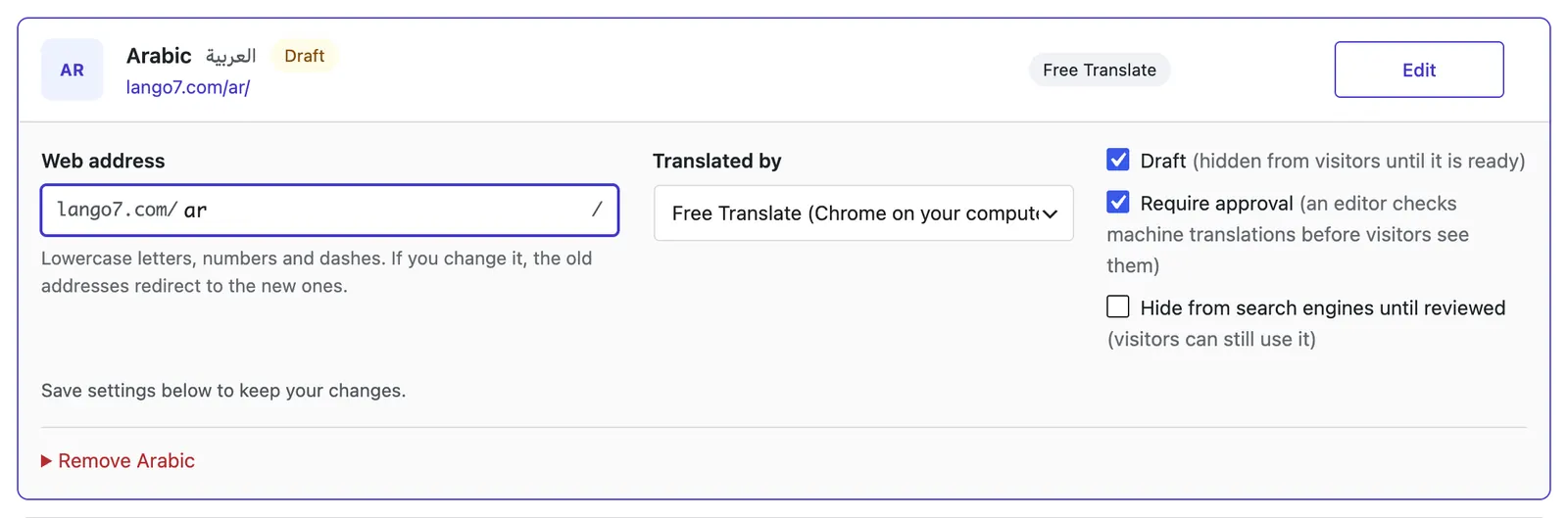
- Go to Translate → Settings → Languages and URLs.
- Click Edit next to the language.
- Tick Require approval.
- Click Save settings.
Who sees what
- Visitors see the original text until a translation is approved.
- Translators, editors and administrators see the waiting translation on the site, so they can check it in place.
- A translation you edit by hand shows at once. It does not need approving.
Approve
- A whole page: click Approve page in the admin bar, or in the block editor’s Lango7 Translation sidebar.
- One sentence: click Approve in the front-end editor.
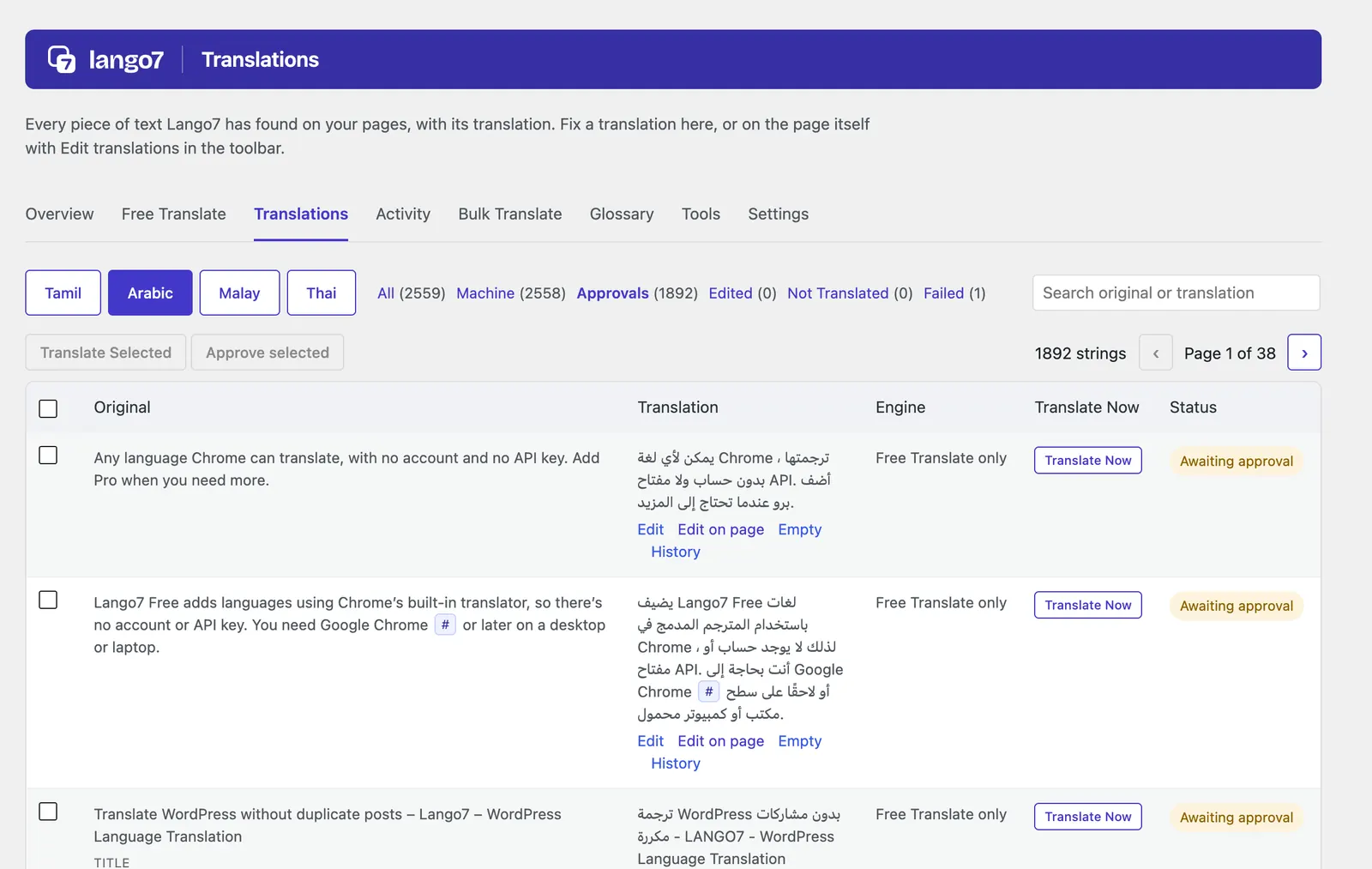
- Many at once: go to Translate → Translations → Approvals, tick the sentences and click Approve selected.
Email reminders
When translations are waiting, the site’s admin email gets a reminder at most once a day per language, with a link to Approvals. Developers can turn it off by returning an empty value from the lango7_pro_approval_email filter.
Bagus untuk diketahui
- If approved text is translated again, the new version waits for approval too. Visitors see the original, not the old translation, until it is approved.
- Improvements from an AI service in Hybrid mode also wait for approval.
- Only editors and administrators can approve.
- If Pro is deactivated, waiting translations show to visitors.