OpenAI follows your Site brief, notes per language, tone and glossary, so it suits pages where wording matters. OpenAI bills by tokens, and new API accounts pay from credit bought in advance.
A ChatGPT Plus subscription doesn’t include API use. The API is billed on its own.
Get the key
- Go to the OpenAI API platform and sign up or sign in.
- Open the billing overview, click Add payment details and buy credit. The minimum is $5, and purchased credit expires after one year in most countries.
- Check Use auto-reload before you confirm. It’s on by default, so turn it off if you don’t want OpenAI to buy more credit by itself.
- Open API keys and click Create new secret key. Name it, for example “Lango7 example.com”.
- Copy the key straight away. It starts with
sk-and you can’t view it again.
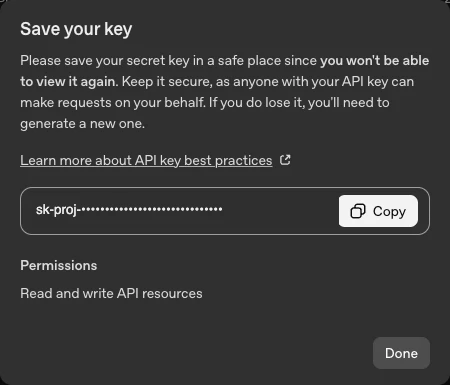
Anyone with the key can spend your credit, so don’t put it in emails, screenshots or support messages. If it leaks, delete it on the API keys page and create a new one.
Add it to Lango7
- Go to Translate → Settings → Translation engine.
- Paste the key into the OpenAI box.
- Under Model, pick one. GPT-5 nano is the default and costs least; GPT-5 mini balances quality and cost.
- Click Test and save. Lango7 sends a short test sentence and saves the key only if it works.
Keys are stored encrypted. If you’d rather keep the key out of the database, add define( 'LANGO7_OPENAI_KEY', '…' ); to wp-config.php instead.
Keep the bill in check
- In the OpenAI platform, open your project’s Limits, set a monthly spend limit and turn on Enforce a hard limit. Without it, the limit only tracks spending. OpenAI says enforcement isn’t instant.
- In Lango7, set a daily character limit.
- Turn off auto-reload if you don’t want credit bought automatically.