Translators like to translate everything, including your brand and product names. Add them to the glossary and Lango7 keeps them as they are.
Add a keyword
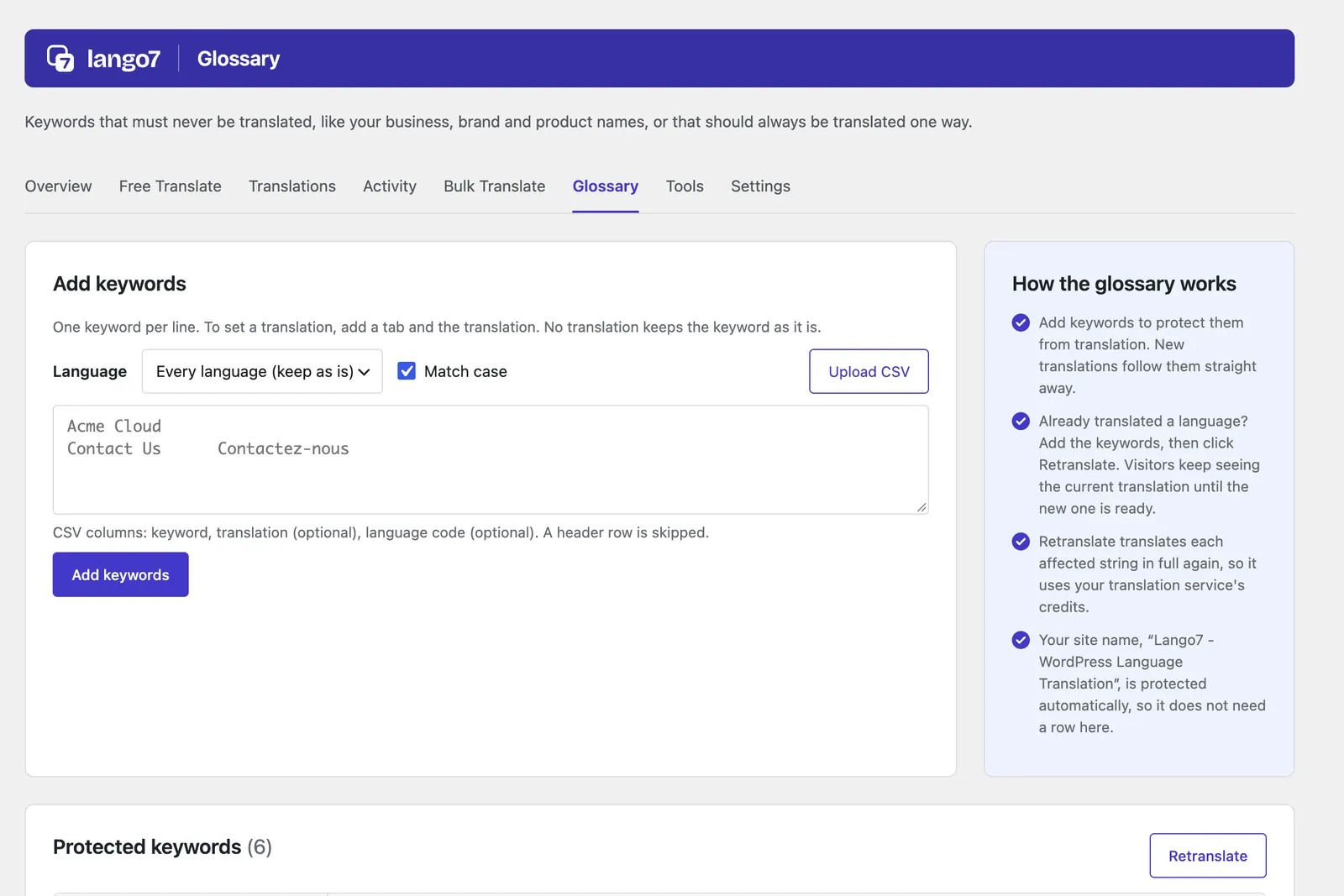
- Go to Translate → Glossary.
- Under Add keywords, type one name per line.
- Leave the language as Every language (keep as is), or choose a language and add a tab and the translation to use instead.
- Click Add keywords.
To add many keywords at once, upload them as a CSV file.
Already translated?
New translations follow the glossary straight away. For pages already translated, click Retranslate. Visitors keep seeing the current translation until the new one is ready.
The glossary is part of Pro. Lango7 Free keeps your site name as it is in every language, automatically.
Keep one sentence as it is
In the front-end editor, click a sentence and choose Keep original. That sentence stays in your own language on that page, in Free and Pro.